
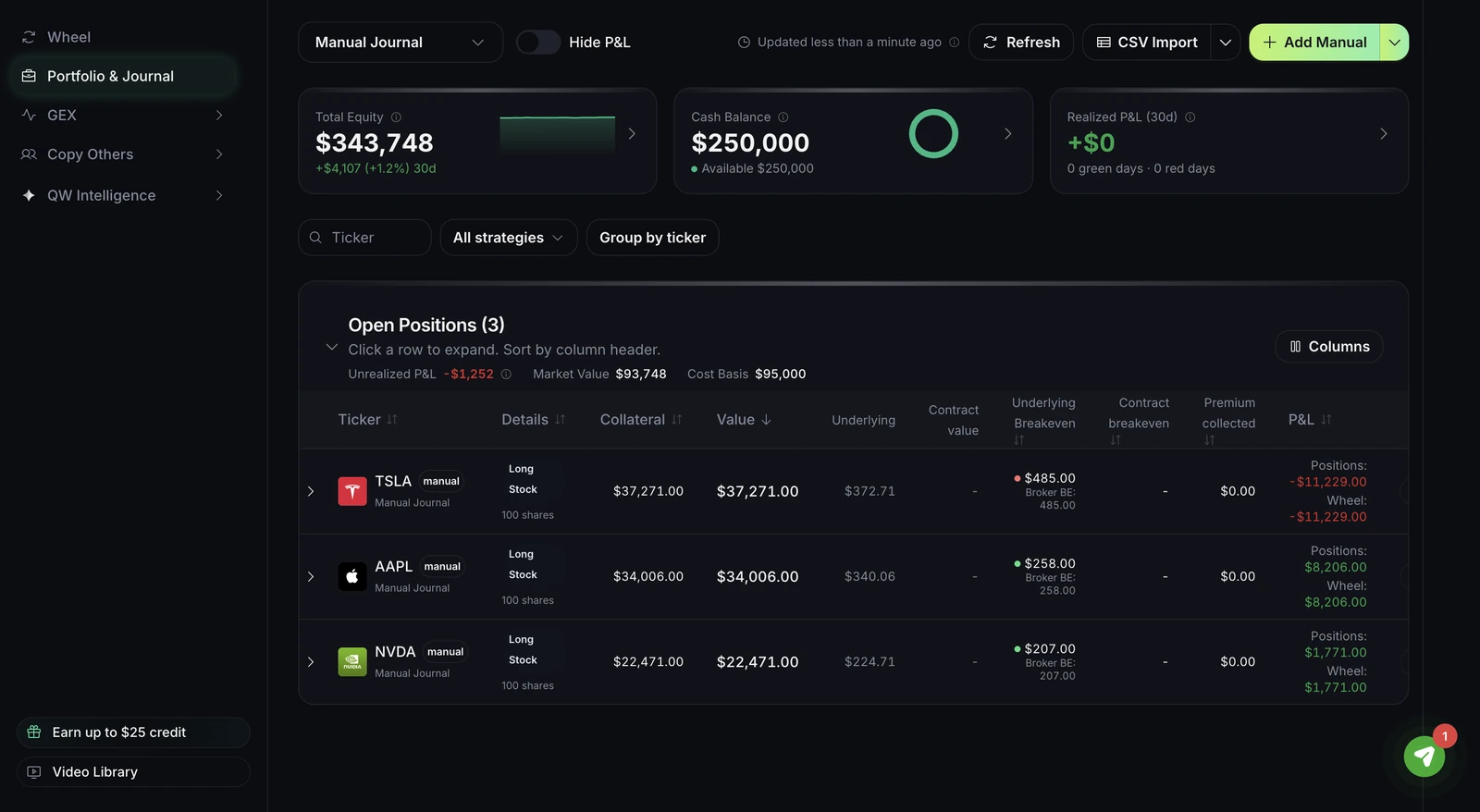
Connecting a broker syncs your open positions, transactions, and cost basis into QuantWheel. Once connected, Open Positions shows your portfolio, the Options Journal auto-populates, and the Action Center widgets switch from demo data to real data.
Before you start
Required:
- The Wheel, Quant or GEX plan, or an active $1 trial. Broker connection isn't available in the demo.
- A brokerage account at one of the brokers currently listed on the Broker Integration page.
- 5 minutes.
Time to complete: 5 minutes
Note: Some brokers have data delays. Fidelity positions and holdings sync on a 24-hour delay. Each broker's page documents its own freshness limits.
Steps
- In the top bar, click Settings.
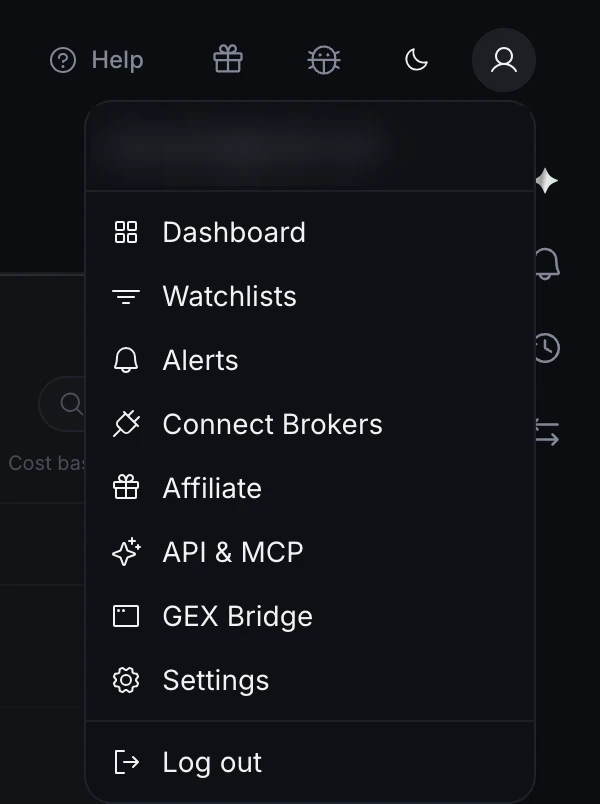
Then click Broker Integration.
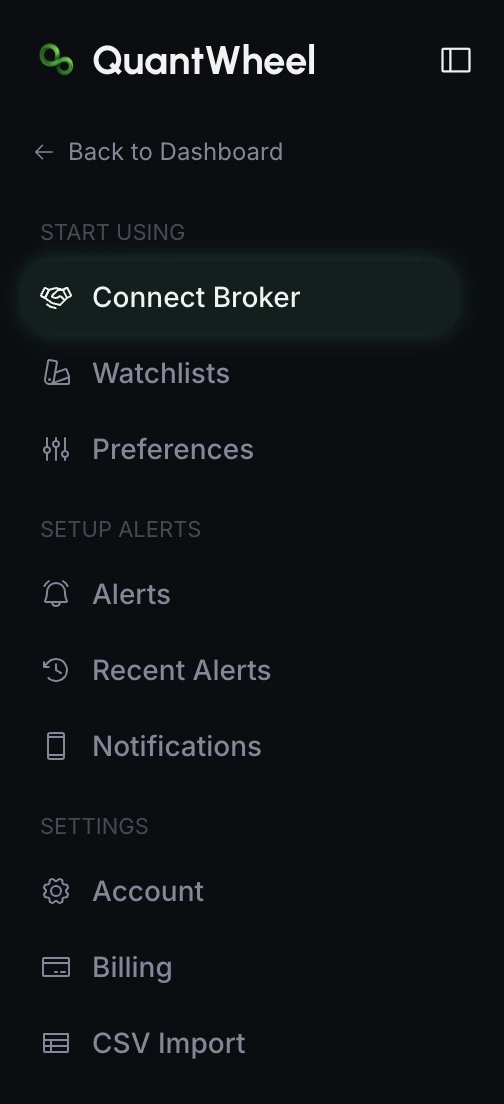
The Broker Integration page lists the brokers currently available for your account. Pick yours. If you're not sure which broker fits - OAuth vs API key, data freshness, which features each one supports - read How to choose and connect a broker first.
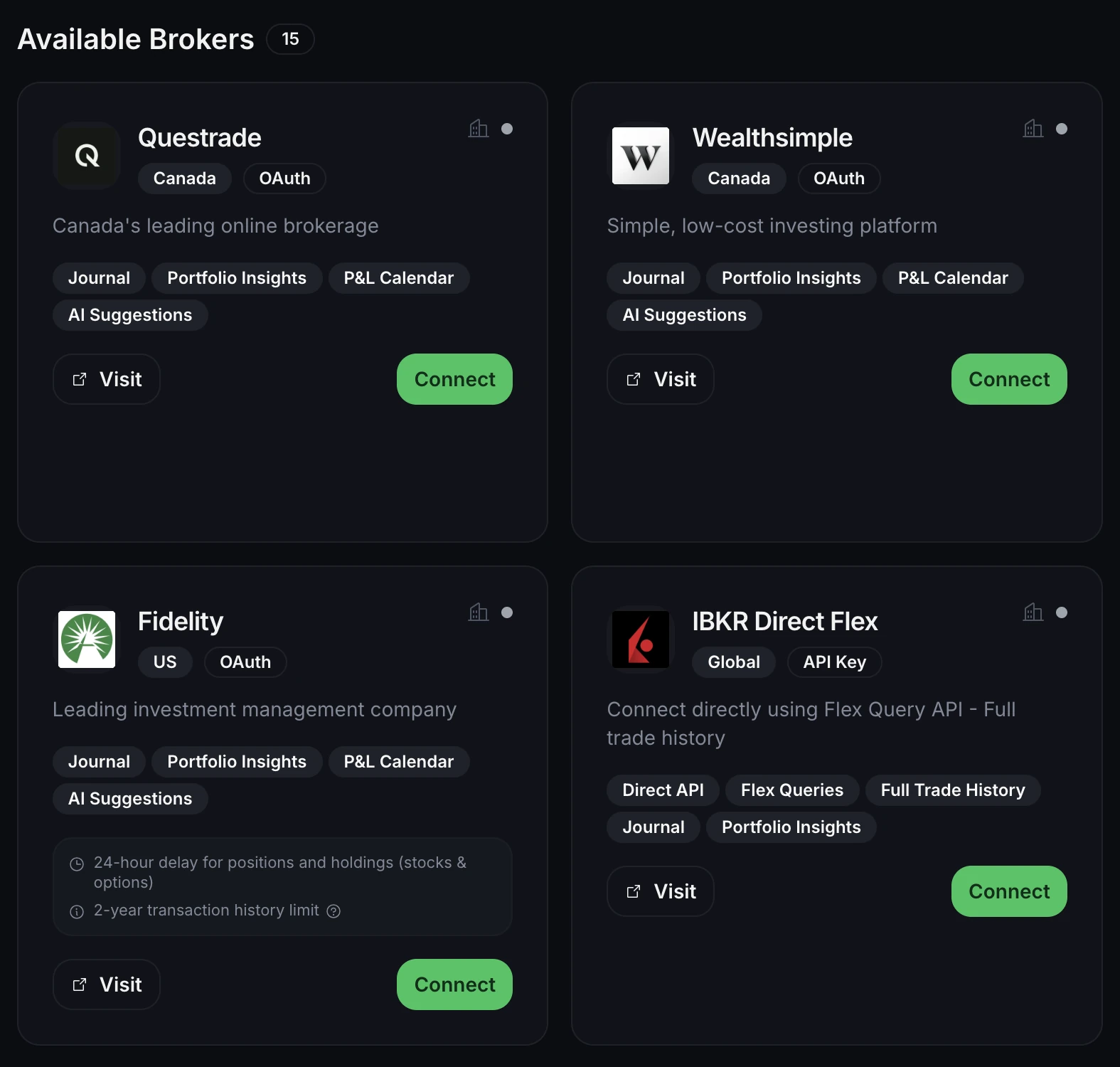
Click Connect on your broker's card. Follow the connection flow. Most brokers use OAuth - log in on the broker's site and review the requested access before approving it. Interactive Brokers uses an API key instead. Each broker has a dedicated how-to with the exact steps.
Return to the Broker Integration page. The connected broker now shows Account is syncing. Initial sync usually takes a few minutes. On Fidelity, positions appear after the 24-hour delay.
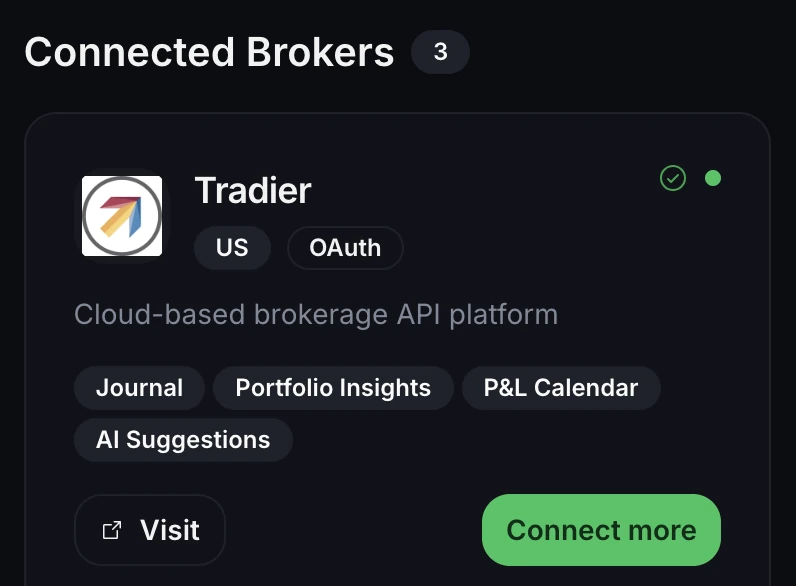
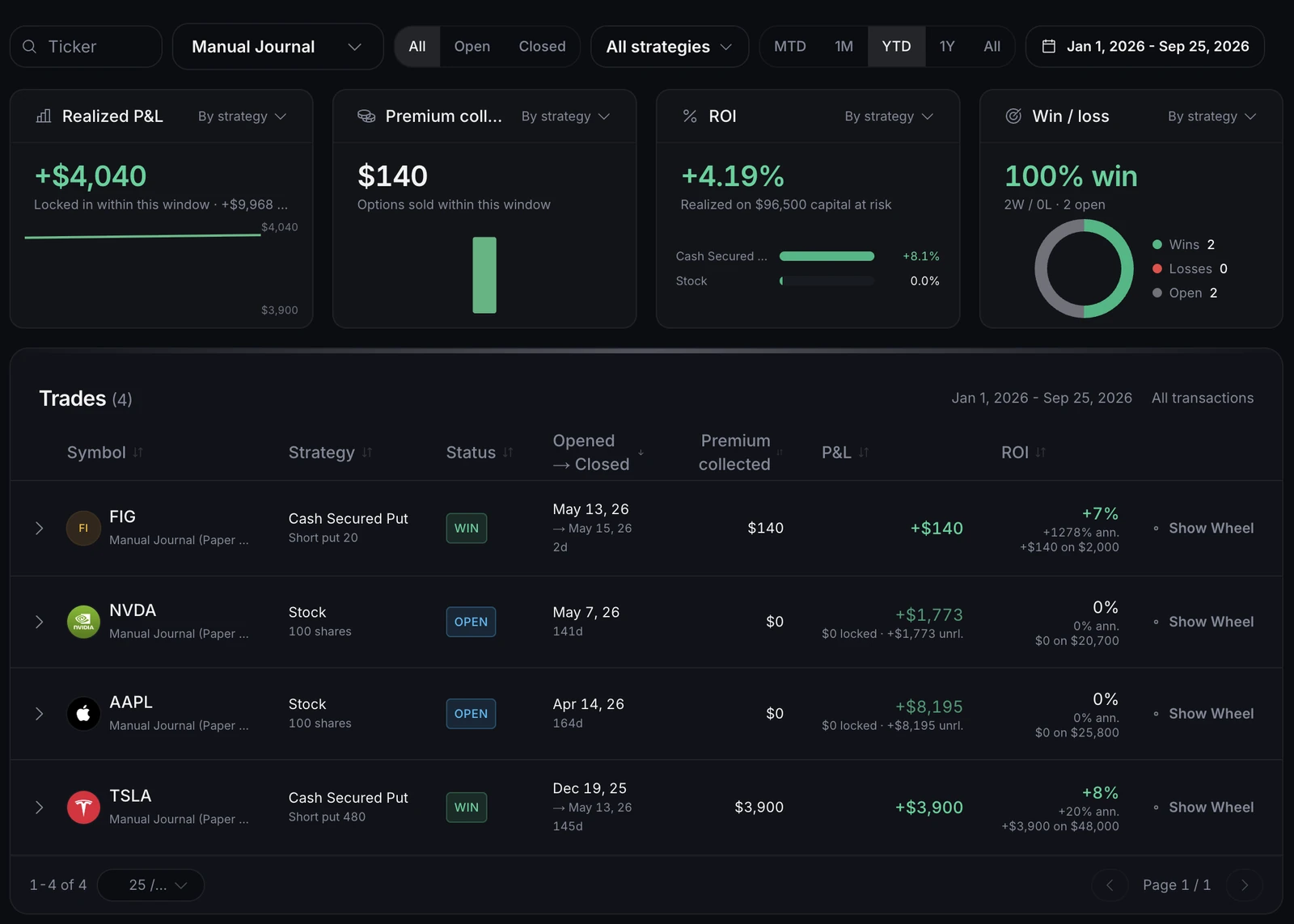
- Open Open Positions in the sidebar. Your stocks and options list there. Open the Journal → Transactions tab to confirm historical trades have imported.
FAQ
The Broker Integration page shows the current broker list with connection method, availability, and feature support. Because availability can change by broker and region, use that page as the source of truth.
Fidelity has a 24-hour delay on positions and holdings. The connection succeeded - the data will appear on the next sync cycle. If 24 hours pass and nothing shows, see Broker sync failed.
Yes. Repeat the flow for each broker. Open Positions and the Journal show a combined view across all connected brokers.
No. OAuth connections store a token the broker issues; we never see your password. API key connections store the key itself in encrypted form. Trading access depends on your broker connection.
Yes. In Settings → Broker Integration, each connected broker has a disconnect option. Disconnecting stops sync; historical imported data stays in the journal unless you delete it separately.