Connecting TradeStation takes about 90 seconds. You click Connect on TradeStation's card in QuantWheel, log in on TradeStation's own website, and approve access, including trading. QuantWheel starts syncing your positions, transactions, and cost basis automatically.
Before you start
Required:
- The Wheel, Quant or GEX plan, or an active $1 trial.
- A TradeStation account with online access credentials.
- A web browser (the connection flow doesn't work in the QuantWheel mobile app yet).
Time to complete: 90 seconds
Steps
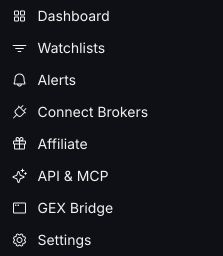
In QuantWheel, open your profile menu and choose Connect Brokers.
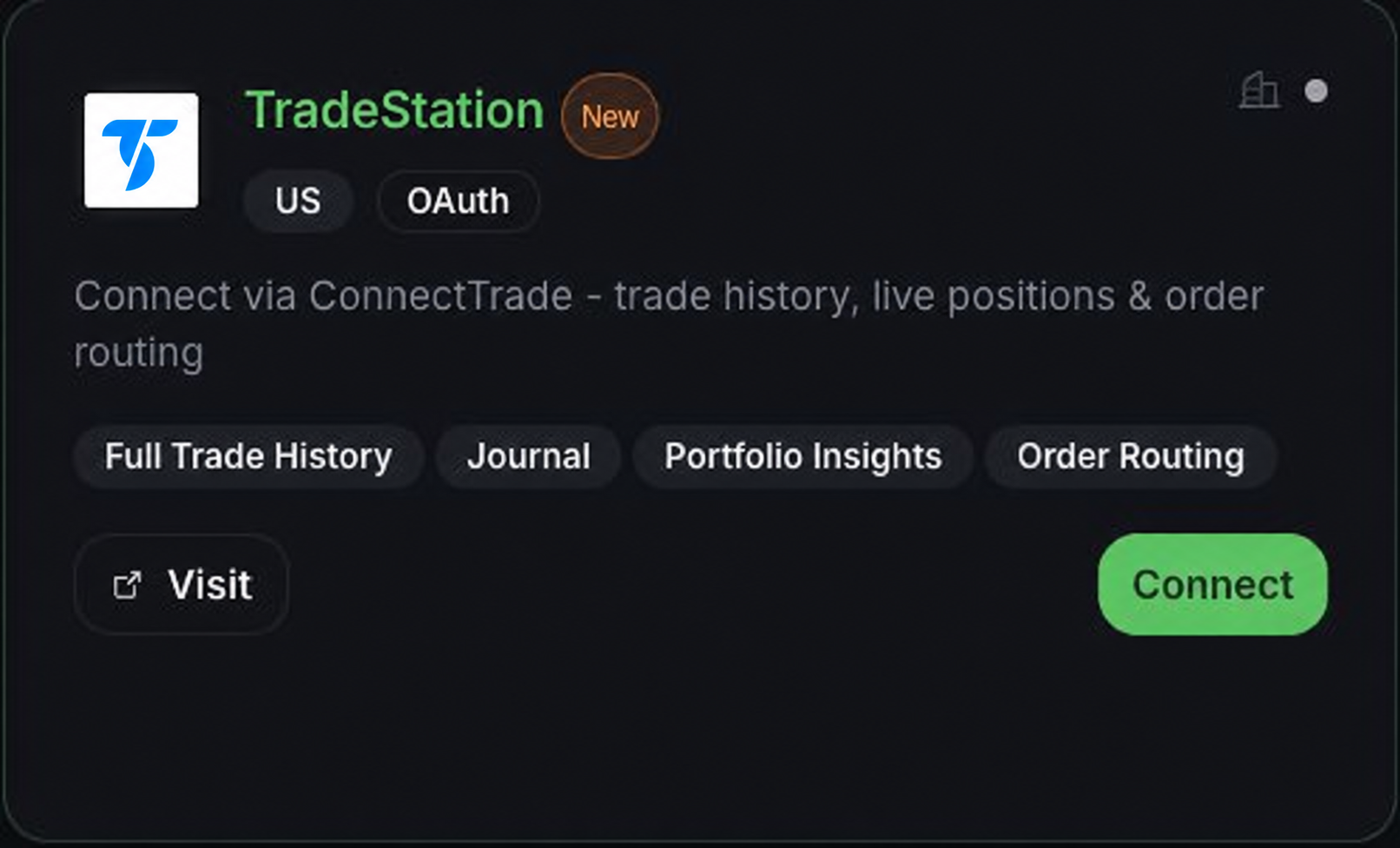
Find the TradeStation card in the list of supported brokers and click Connect.
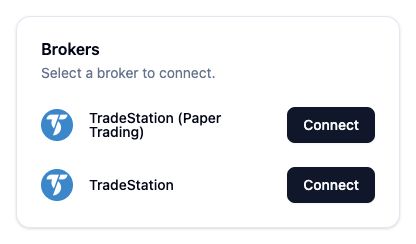
ConnectTrade opens. Click Connect next to TradeStation for a live account or TradeStation (Paper Trading) for paper trading.
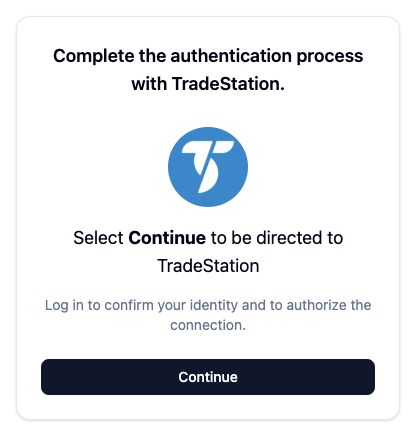
On the next screen, click Continue to open TradeStation's login page.
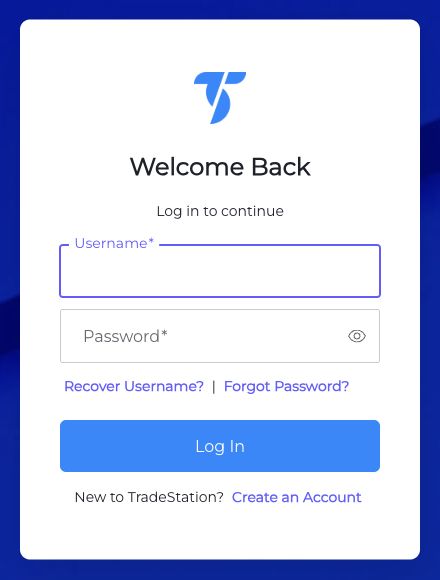
You're redirected to TradeStation's own login page. Enter your TradeStation username and password. If you use two-factor authentication on your TradeStation account, complete it here.
TradeStation displays a consent screen listing the access QuantWheel is requesting, including placing trades. Approve the request.
You're returned to the QuantWheel Broker Integration page. TradeStation now shows as Connected with Account is syncing status. Sync may take up to 15 minutes.
Open Portfolio & Journal to confirm your positions and trades are appearing.
FAQ
Initial sync takes a few minutes for most brokers. If more time passes and positions still don't appear, see Broker sync failed.
The login step runs on TradeStation's own website, not QuantWheel. If TradeStation returns an error (wrong password, account locked, 2FA failure), resolve it there first. Once you can log in to TradeStation directly, retry the QuantWheel connection.
Yes. After the first account connects, click Connect on TradeStation's card again to add another. Each account is tracked separately; Open Positions and the Journal show the combined view.
Yes. You can place trades from QuantWheel through your connected TradeStation account. You approve each order, and TradeStation executes it.
In QuantWheel, open your profile menu and choose Connect Brokers. On the TradeStation card, click the disconnect option. Disconnecting stops sync immediately; historical imported data stays in the journal unless you delete it separately.
The OAuth token TradeStation issued stays valid until you revoke it from TradeStation's side or disconnect from QuantWheel's side. If TradeStation force-expires the token (this can happen after a password change or security event), you'll see a re-connection prompt in QuantWheel.