
Broker authentication errors appear when the token QuantWheel holds for your broker becomes invalid. This page covers the specific diagnostic flow for auth failures - distinct from the broader "sync failed" flow, because the fix is always re-authentication rather than troubleshooting the sync itself.
Symptoms you might see
- An error like "Authentication failed - please reconnect" on a broker card
- A red shield or warning icon next to the broker name in the top bar
- The broker card shows "Disconnected" even though you haven't disconnected it yourself
- Attempting to Resync returns an immediate auth error rather than timing out
- After a password change on your broker's side, QuantWheel stops syncing that broker
Most likely cause
The token your broker issued to QuantWheel has been invalidated. Common triggers, in order of how often each occurs:
- Password change on the broker - many brokers invalidate all existing third-party tokens when you change your password
- Expired OAuth token - some brokers rotate tokens on a fixed schedule (30 days, 90 days, annually)
- 2FA method changed on the broker - adding or switching 2FA methods can invalidate existing tokens
- Security event on the broker - if your broker detected unusual activity and locked out third-party access, the token is dead until you re-authenticate
- Flex Query token expired (IBKR only) - IBKR Flex tokens default to short lifespans unless you set Expire After: 1y
How to diagnose
Step 1: Check which error type is showing
On Settings → Broker Integration, each broker card with an auth problem shows a specific error:
- "Authentication failed" - token is invalid; re-authenticate (go to Step 2)
- "Session expired" - token timed out; reconnect (go to Step 2)
- "Account locked" - broker-side security action; log in to the broker directly first (go to Step 3)
- "Invalid credentials" - typical for IBKR if the Flex token was rotated or deleted (go to Step 4)
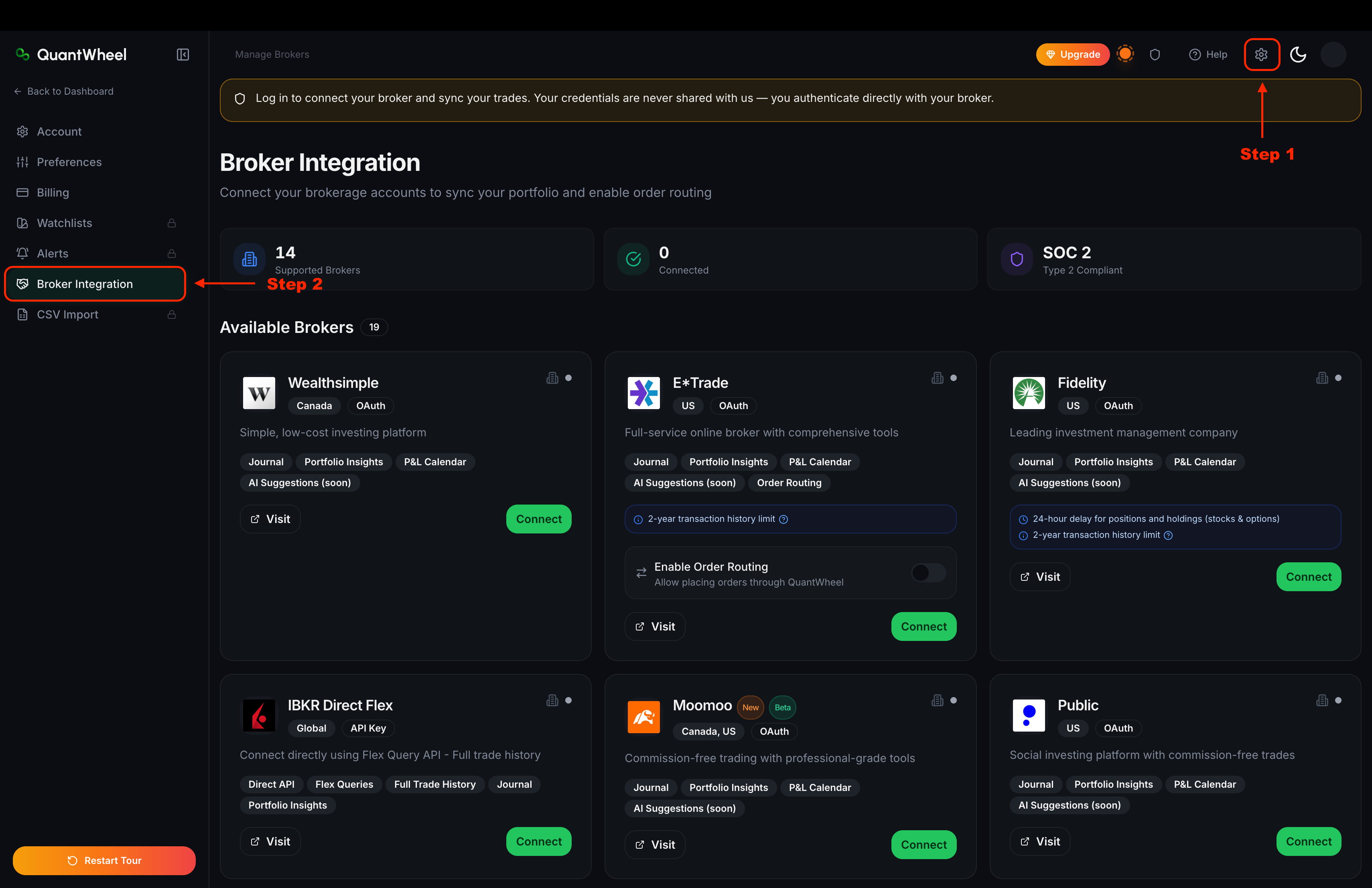
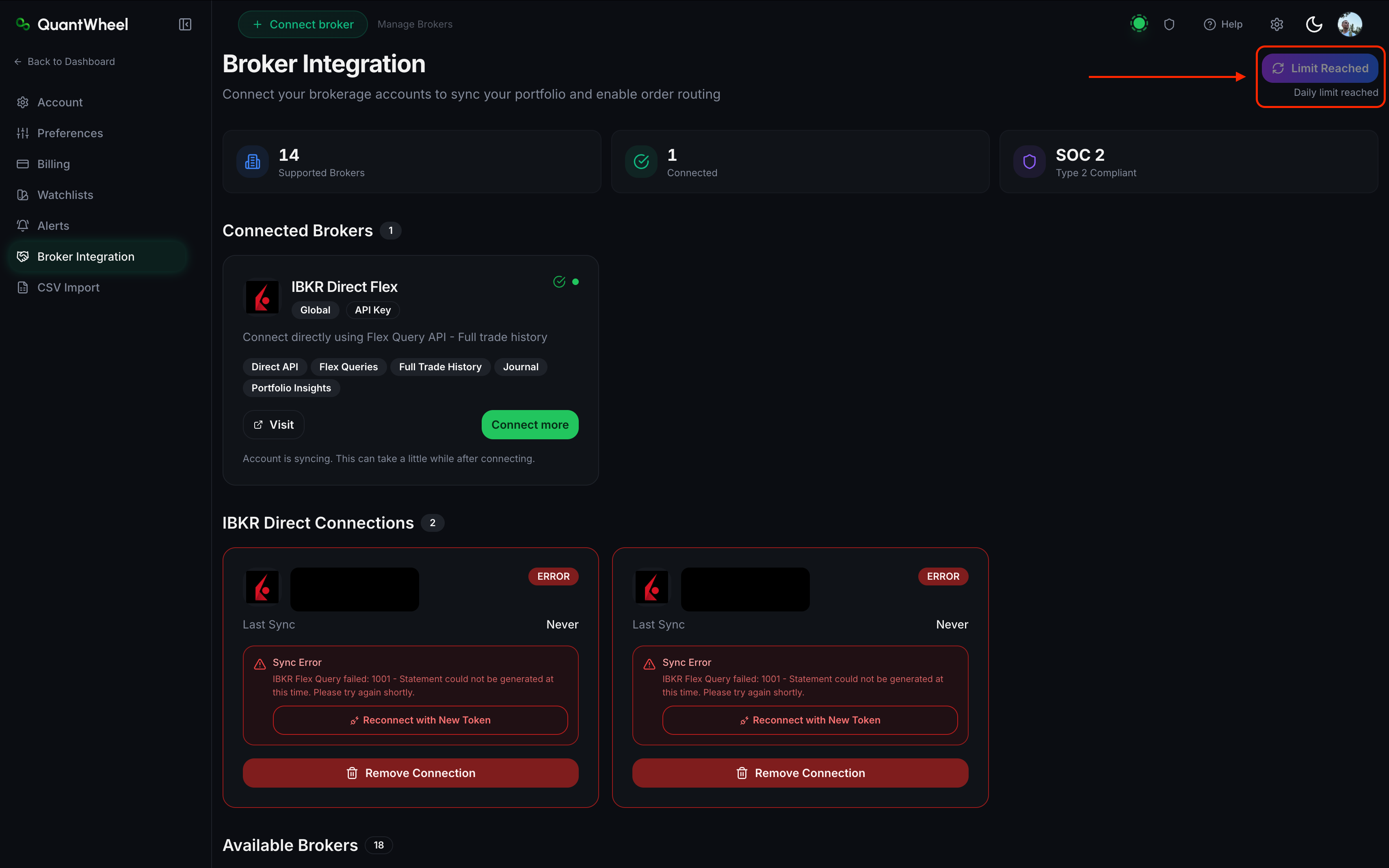
Step 2: Re-authenticate a one-click broker
For Fidelity, Schwab, Robinhood, and the other SnapTrade brokers:
- Click Reconnect on the broker card
- You're redirected to the broker's login page on the broker's own website
- Log in with your current credentials; complete 2FA if you use it
- Approve the read-only access request
- Return to QuantWheel. The broker card should now show Connected
If the broker's login page rejects your credentials, go to Step 3.
Step 3: Log in to your broker directly first
If the Reconnect flow fails at the broker's login page, the issue is on the broker's side, not QuantWheel's.
- Go to your broker's website (fidelity.com, schwab.com, etc.) in a browser
- Log in normally
- If login fails or you're prompted to change your password, resolve it there first
- Once you can log in directly, retry Reconnect in QuantWheel
Step 4: Rotate the IBKR Flex Query token
For Interactive Brokers specifically:
- Log in to IBKR
- Go to Performance & Reports → Flex Queries → Flex Web Service Configuration
- If the existing token is expired, generate a new one. Set Expire After: 1y to avoid future expirations.
- Copy the new token
- In QuantWheel, go to Settings → Broker Integration, disconnect IBKR, and reconnect with the original Query ID and the new token
Full IBKR setup: How to connect Interactive Brokers.
Step 5: Check for 2FA or security settings changes
If you recently:
- Added, removed, or changed your 2FA method on the broker
- Changed your broker's security questions
- Reset your password
...the broker almost certainly invalidated existing third-party tokens as a security precaution. Reconnecting is the only fix.
How to fix
Based on which cause applies:
- Invalid OAuth token → click Reconnect, go through the broker's login flow
- Locked account → resolve with the broker directly, then reconnect
- Changed password or 2FA → reconnect; new token will use new credentials
- Expired Flex Query token (IBKR) → rotate and reconnect with new token
If that doesn't work
If:
- You can log in to your broker directly without issue
- Reconnect takes you through the broker's flow successfully
- The approval step completes without an error
- But the broker card still shows an auth error afterward
...it's likely a QuantWheel-side token handling issue. Try:
- Disconnect the broker fully from Settings → Broker Integration
- Wait 2 minutes
- Reconnect from scratch
If that still fails, report via the Help link with the broker name and the exact error text. Support can inspect the token exchange logs.