
A Smart Alert is a custom rule you write in natural language. QuantWheel parses the rule, watches the market or your positions continuously, and sends you a notification the moment the condition is met.
This page walks you through creating one - from picking the scope, writing the rule, previewing it, to configuring delivery.
Before you start
Required:
- The Wheel or Quant plan, or an active $1 trial (unlimited Smart Alerts are a feature of the Wheel and Quant plans).
- If you want Discord delivery, the Discord integration should already be set up.
See How to set up Discord alerts first.
Time to complete: 8 minutes for your first alert; 3 minutes each after that.
Steps
1. Open the Smart Alerts page
Go to Settings → Alerts.
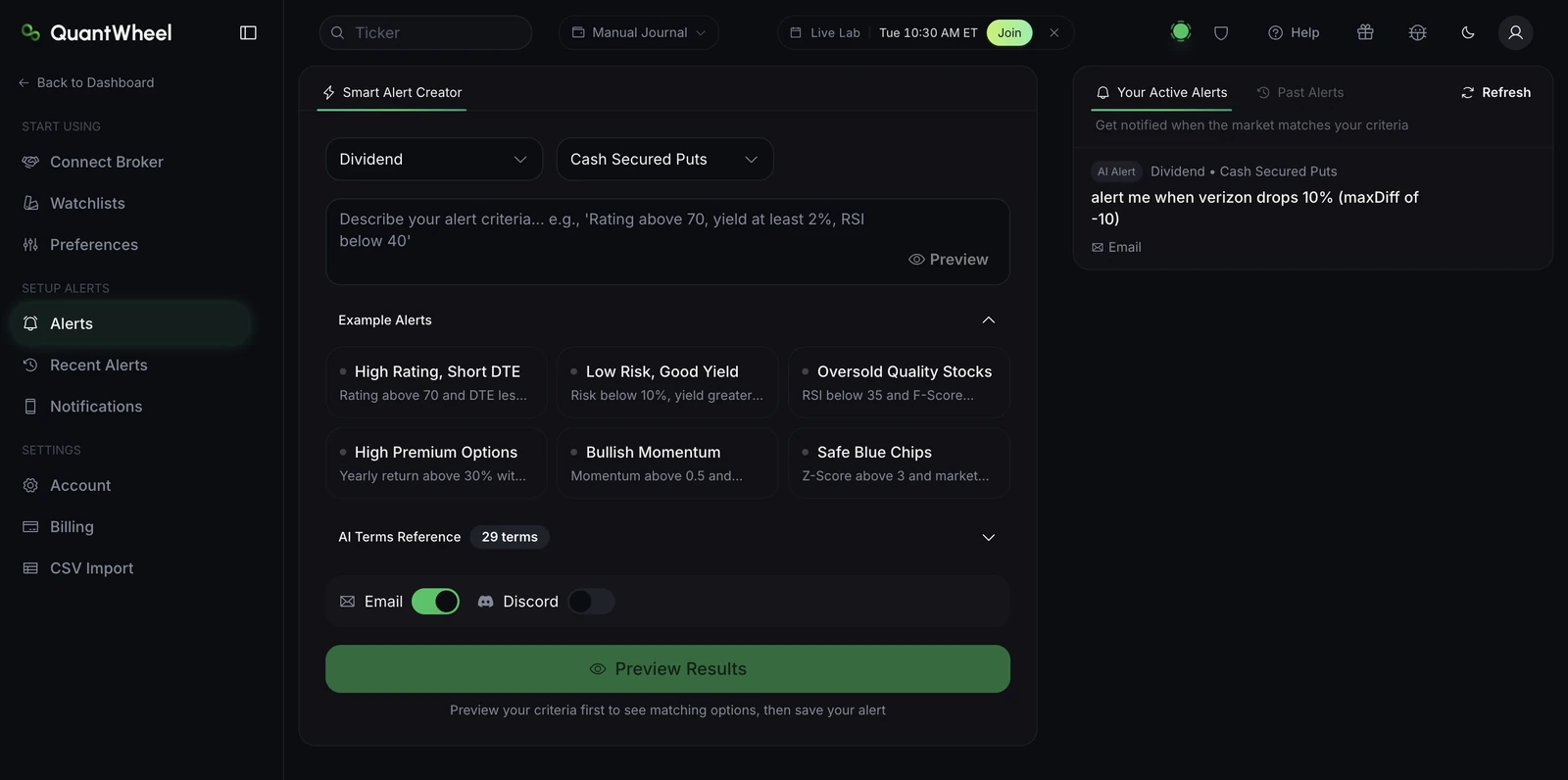
2. Write the rule in natural language
The main input is a text field where you write the alert condition in plain English. A few examples:
alert me when SPY IV crosses 20notify when any of my CSPs has delta below -0.40alert when NVDA RSI drops below 30notify when my TSLA covered call's break-even is reachedalert when my position's P&L exceeds 50% of the collected premium
QuantWheel's parser understands a defined vocabulary of terms - price, IV, delta, RSI, P&L, break-even, strike, DTE, and many more - and maps them to the corresponding data fields.
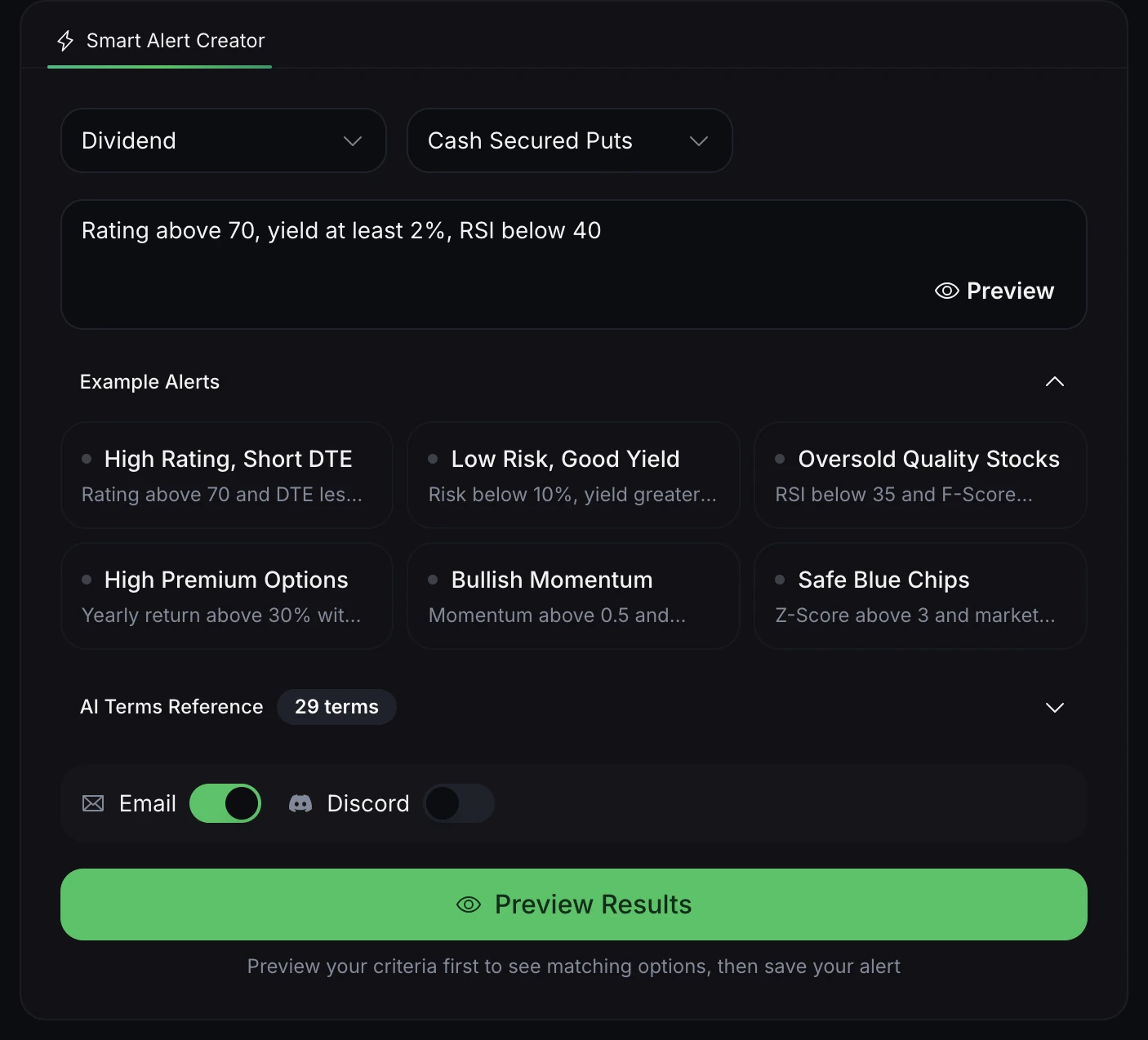
3. Use Example Alerts for inspiration
Below the input, an Example Alerts section lists 6 common alert patterns as clickable templates. Click one to load it into the input field and modify as needed.
The examples cover the most common wheel-trader alerts: position-level triggers, IV thresholds, technical signals, and profit-taking conditions.
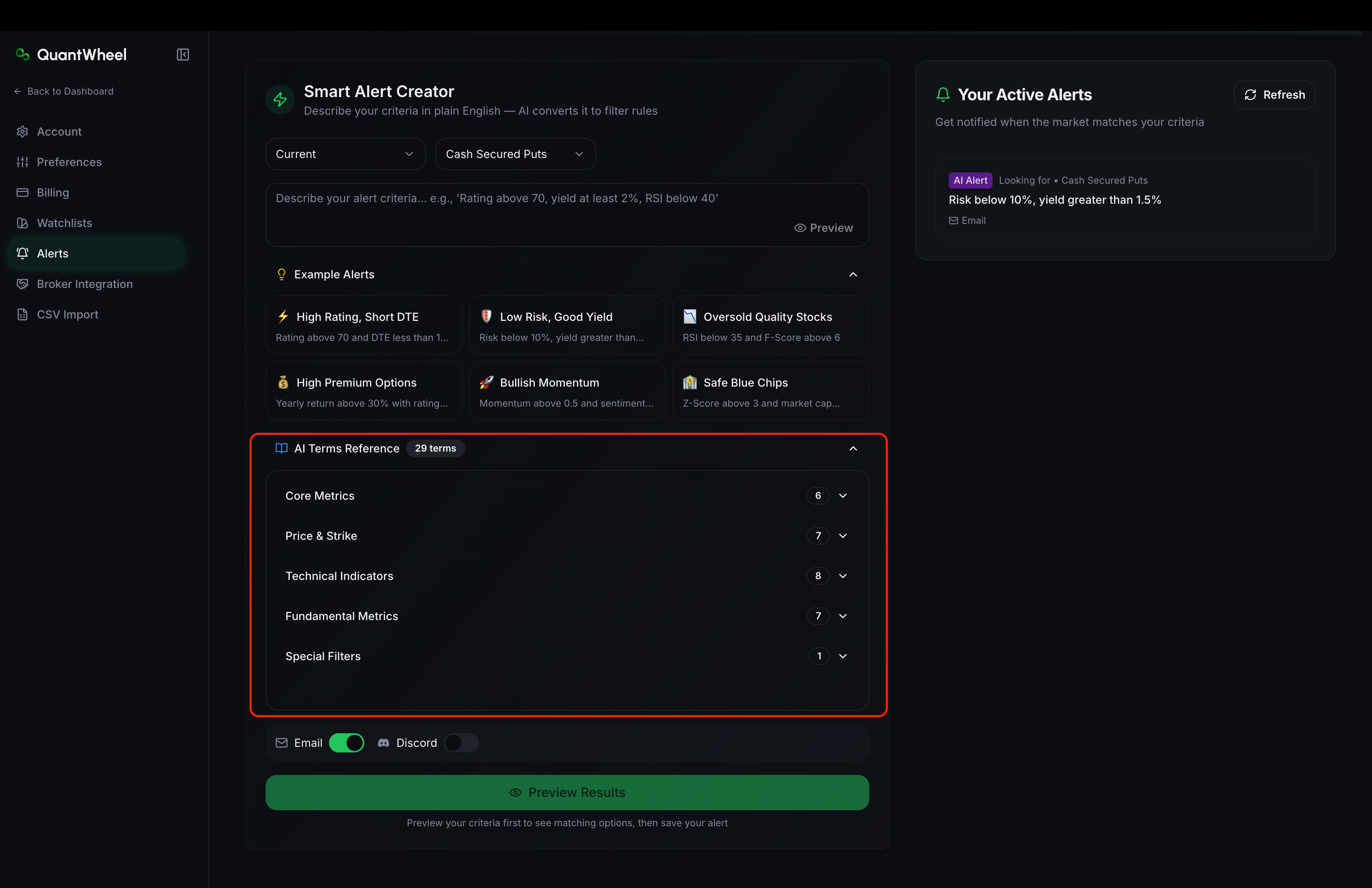
4. Use the AI Terms Reference for vocabulary
Alongside the input, an AI Terms Reference panel lists the supported terms you can use in natural-language alerts. Scroll or search it while writing your rule.
If a term you want isn't supported, the Preview step will flag it.
5. Configure delivery
Above Preview, toggle which channels you want this alert to use:
- Email - to the email on your account
- Discord - to your configured Discord channel (requires Discord setup)
Choose at least one delivery channel before saving.
6. Save
Click Create Alert. The alert appears in your active-alerts list and starts evaluating immediately. You can edit or delete it from Alerts at any time - see How to manage your active alerts.
Common issues
My rule was flagged as "not parseable."
The parser didn't recognize a term. Most common causes:
- Using a term that isn't in the AI Terms Reference - check the reference and substitute
- Ambiguous phrasing - "high IV" is ambiguous; "IV above 40" is clear
- Missing subject - "alert when it drops below 100" doesn't specify what; "alert when SPY drops below 100" does
I want an alert on something that isn't in the AI Terms Reference.
Submit feedback via the Help link - new terms are added based on user requests.
In the meantime, Gamma Flip Alerts and Put Wall / Call Wall Alerts cover some conditions that don't fit Smart Alerts naturally.
Can a Smart Alert auto-execute a trade?
No. Alerts only send notifications. You decide whether to place a trade.
Related
Risk disclaimer: Options trading involves substantial risk of loss and is not suitable for all investors. Past performance does not guarantee future results. This content is for educational purposes only and is not investment advice.