
Find Deals is the first tab of the Wheel workflow. It scans the market for wheel opportunities — cash-secured puts, covered calls, and a few directional strategies — and ranks them against your filter criteria. Every other Wheel tab (Roll, Covered Calls, Results) works on positions that started here.
Before you start
Required:
- QuantWheel PRO, QuantWheel GEX, or an active $1 trial.
- At least one connected broker, or a watchlist with tickers you want to screen.
Recommended:
- Set your Target Yearly Yield, Risk Profile, and Max Collateral Per Trade under Settings → Preferences first. These seed the screener's default filter values so every screen starts in a sensible place.
Time to complete: 10 minutes to learn the layout
What's on the screen
Find Deals has four sections, top to bottom.
1. Strategy and scope controls
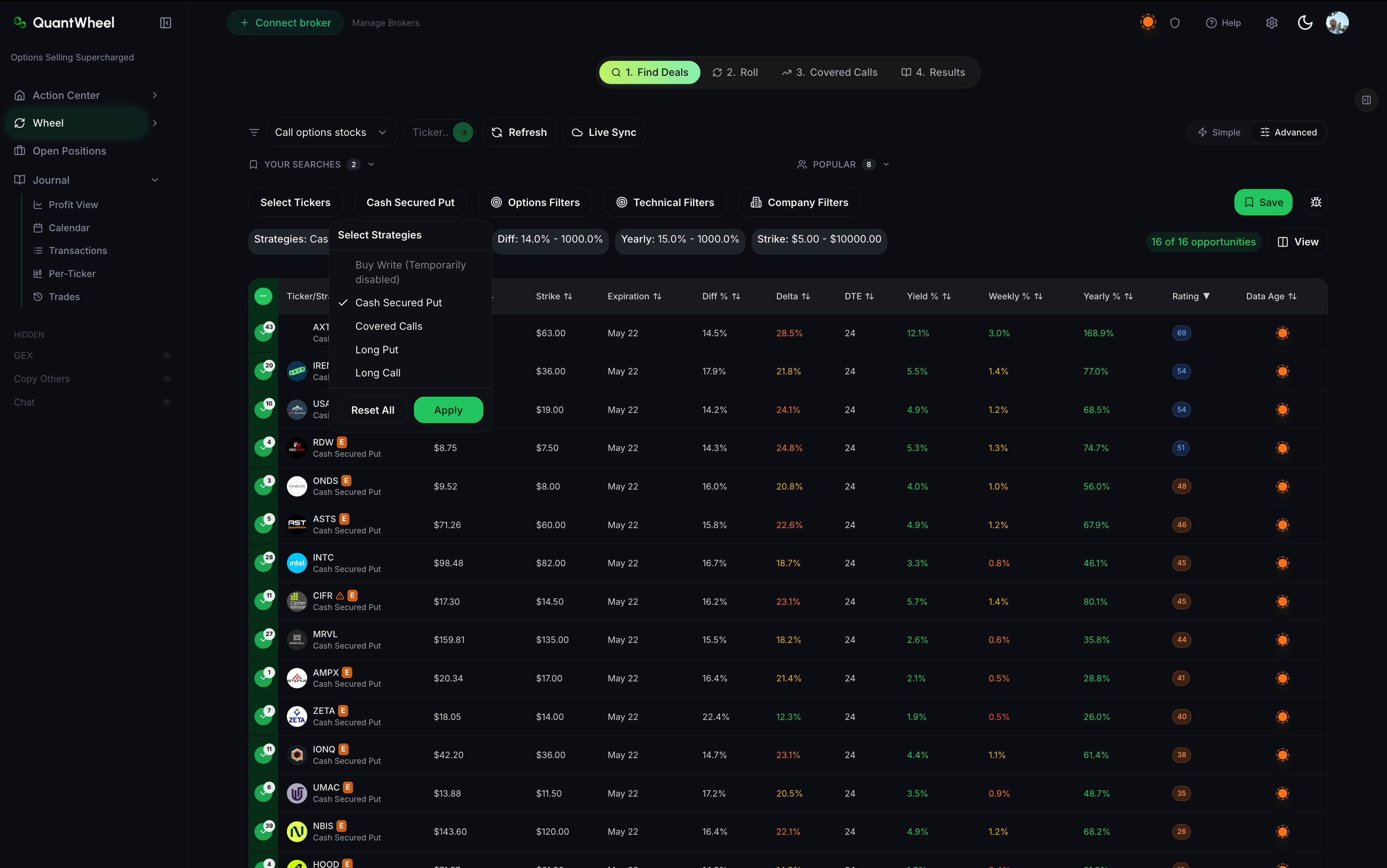
At the top, the Strategy selector dropdown picks what you're screening for: Cash Secured Put, Covered Calls, Long Put, Long Call, or Buy Write (disabled in the default view). The strategy determines which filters are relevant and how results are ranked.
Next to it, the Market selector narrows which universe of stocks gets scanned. Below that, a ticker search lets you restrict the screen to a specific watchlist or a hand-picked set of tickers.
The Refresh and Live Sync buttons re-run the current filter set. Refresh pulls new data on demand; Live Sync enables continuous updates while the tab is open
2. Simple / Advanced toggle and saved filters
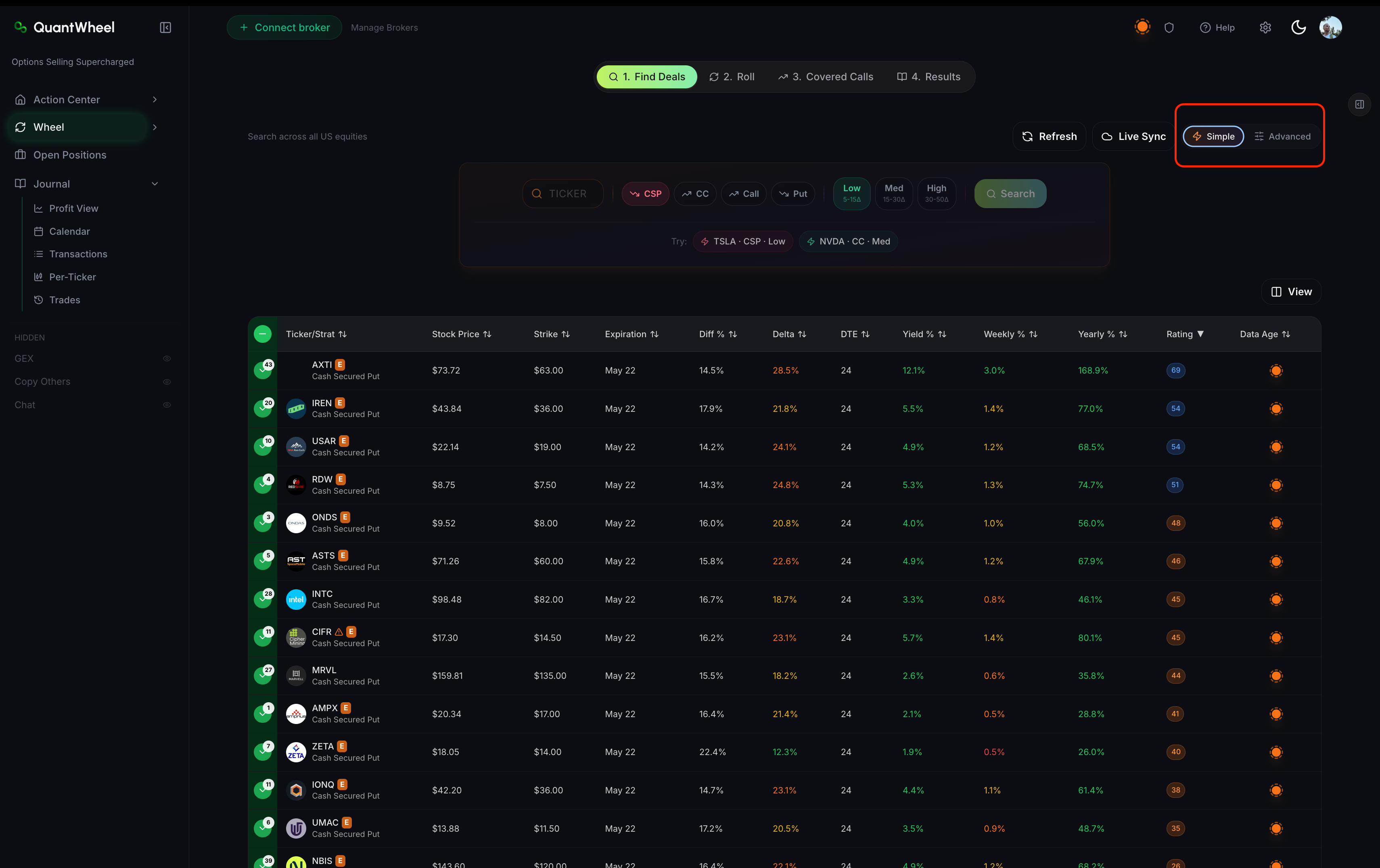
A Simple/Advanced toggle switches between a reduced filter set (useful when you're learning) and the full 30+ filter set (useful when you know what you want).
Below the toggle, Your Searches holds filter combinations you've saved. Popular shows filter combinations other QuantWheel users have made public. Clicking either loads the saved filter set into the current screen.
3. The four filter groups
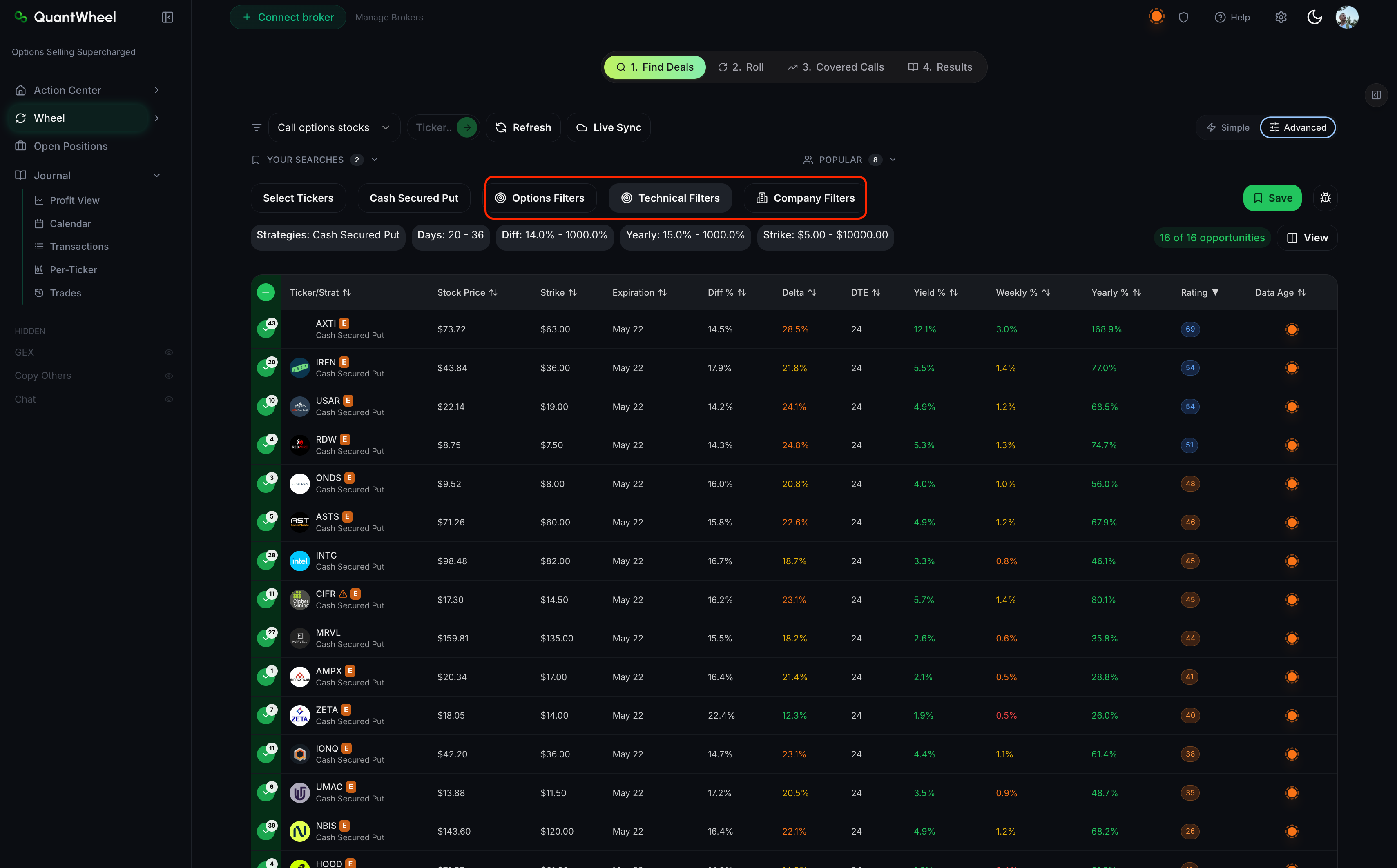
Every screen pulls from four filter groups. Each filter is optional; leave it untouched to ignore it.
Options filters — the core wheel metrics. Delta, Strike, Days to expiration, Yield %, distance from money, Rating, implied volatility, open interest, bid/ask, and an earnings inclusion toggle.
Technical filters — price-action signals. RV/IV ratio, sentiment, RSI, expected move, momentum, and SMA trend comparisons.
Company filters — fundamental quality. Market cap, Z-Score, F-Score, P/E ratio, ROIC, PEG, EPS growth.
Earnings filter (found under "options filters")— include or exclude stocks with upcoming earnings within the screened expiration window.
Each group has its own deep-dive page:
- How to filter by options metrics
- How to filter by technical indicators
- How to filter by company fundamentals
4. Results table
Below the filters, the results table shows every opportunity matching your filter set, ranked by Rating. Each row is one option contract on one ticker at one strike and expiration.
Key columns:
- Stock Price — current price of the underlying
- Strike — the option's strike price
- Expiration — contract expiration date
- Diff % — distance between current price and strike, as a percentage
- Delta — probability-like measure of the option's moneyness
- DTE — days to expiration
- Yield % — premium collected divided by collateral required
- Weekly % — yield normalized to a weekly rate
- Yearly % — yield annualized
- Rating — QuantWheel's proprietary opportunity score (higher is better, given your filter set)
- Data Age — how recent the option chain data is for this row
A counter shows "N of M opportunities" (e.g., "50 of 1986"). The 50 is what's currently visible after filtering; 1986 is the unfiltered universe.
5. Filter controls at the bottom
Three buttons sit below the filter groups:
- System Reset — clear all filters to default values
- User Default — reset to the values seeded from your Preferences
- Apply Filters — re-run the screen with the current filter set
Common issues
I set filters but no opportunities show up.
Three common causes:
- Filters are too narrow. Start with the System Reset button, then add filters one at a time, re-running after each.
- The ticker scope is restrictive. If you're screening only a small watchlist, loosen the scope to a larger market.
- The Includes Earnings toggle is set to a value that excludes most current results (many stocks have earnings within 30 days).
Check the watchlist you're screening for, check if you have selected technical filters (stock may no longer fit under those filters so you don't see option trading opportunities because of that). Best way is to do a system reset (button found under option filters).\
What's the difference between Weekly %, Yearly %, and Yield %?
Yield % is the raw premium divided by collateral for this specific contract. Weekly % normalizes that to a 7-day rate, so you can compare a 3-DTE contract against a 10-DTE contract on a level field. Yearly % annualizes the weekly rate. All three describe the same underlying return; the time-frame framing differs.
The results keep changing while I have the tab open.
That's Live Sync. Toggle it off if you want a stable snapshot while you compare candidates. The Refresh button still works manually.
What does Rating actually mean?
Higher Rating values are higher-quality opportunities given your current filter set. The score balances yield, distance from money, liquidity, and related market inputs. Your Preferences influence which rows appear by default through filters like target yield, assignment risk, and collateral. How to read the opportunity Rating covers how to use it in practice.
Can I save a filter combination I like?
Yes — see How to save and reuse filter combinations.
Related
- How to run your first screen
- How to read the opportunity Rating
- How to filter by options metrics
- Understanding the wheel strategy
Risk disclaimer: Options trading involves substantial risk of loss and is not suitable for all investors. Past performance does not guarantee future results. This content is for educational purposes only and is not investment advice.