
This page walks you through running your first Find Deals screen from start to finish. If you've already read How to use the Find Deals screener and want a concrete example that takes you from blank screen to a shortlist of candidates, this is it. The screen we'll run is a conservative cash-secured put screen — the most common starting point for new wheel traders.
Before you start
Required:
- QuantWheel PRO, QuantWheel GEX, or an active $1 trial.
- Familiarity with the Find Deals layout. If you haven't looked at the screener before, read How to use the Find Deals screener first.
- Your Preferences set: Target Yearly Yield, Risk Profile, Max Collateral Per Trade. Go to Settings → Preferences if you haven't set these yet.
Time to complete: 10 minutes
Steps
1. Open Find Deals and pick a strategy
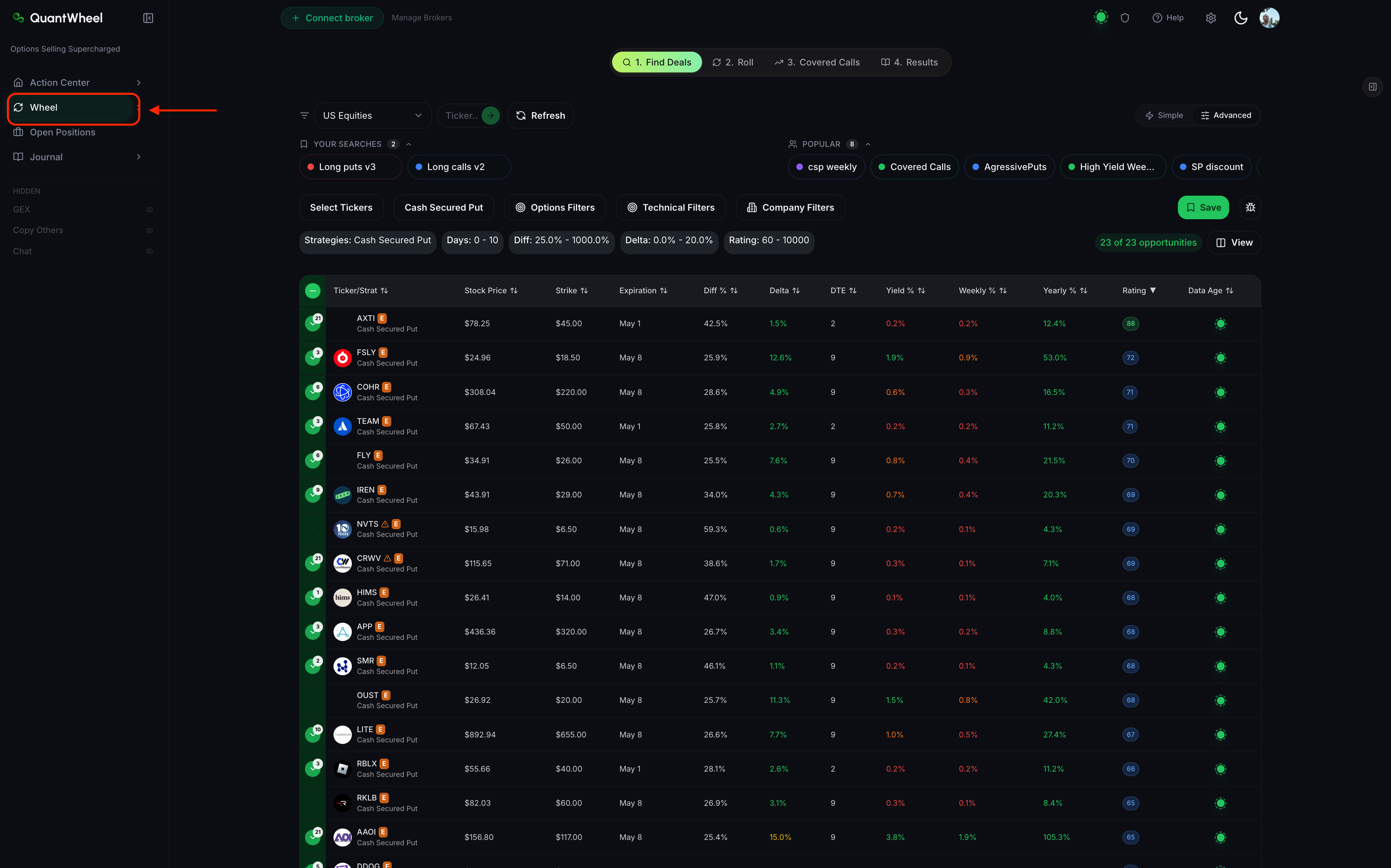
Open Wheel → Find Deals in the sidebar. The Strategy selector at the top is set to Cash Secured Put by default. Leave it there.
Cash Secured Put is stage 1 of the wheel. Every wheel trade starts here.
2. Set the ticker scope
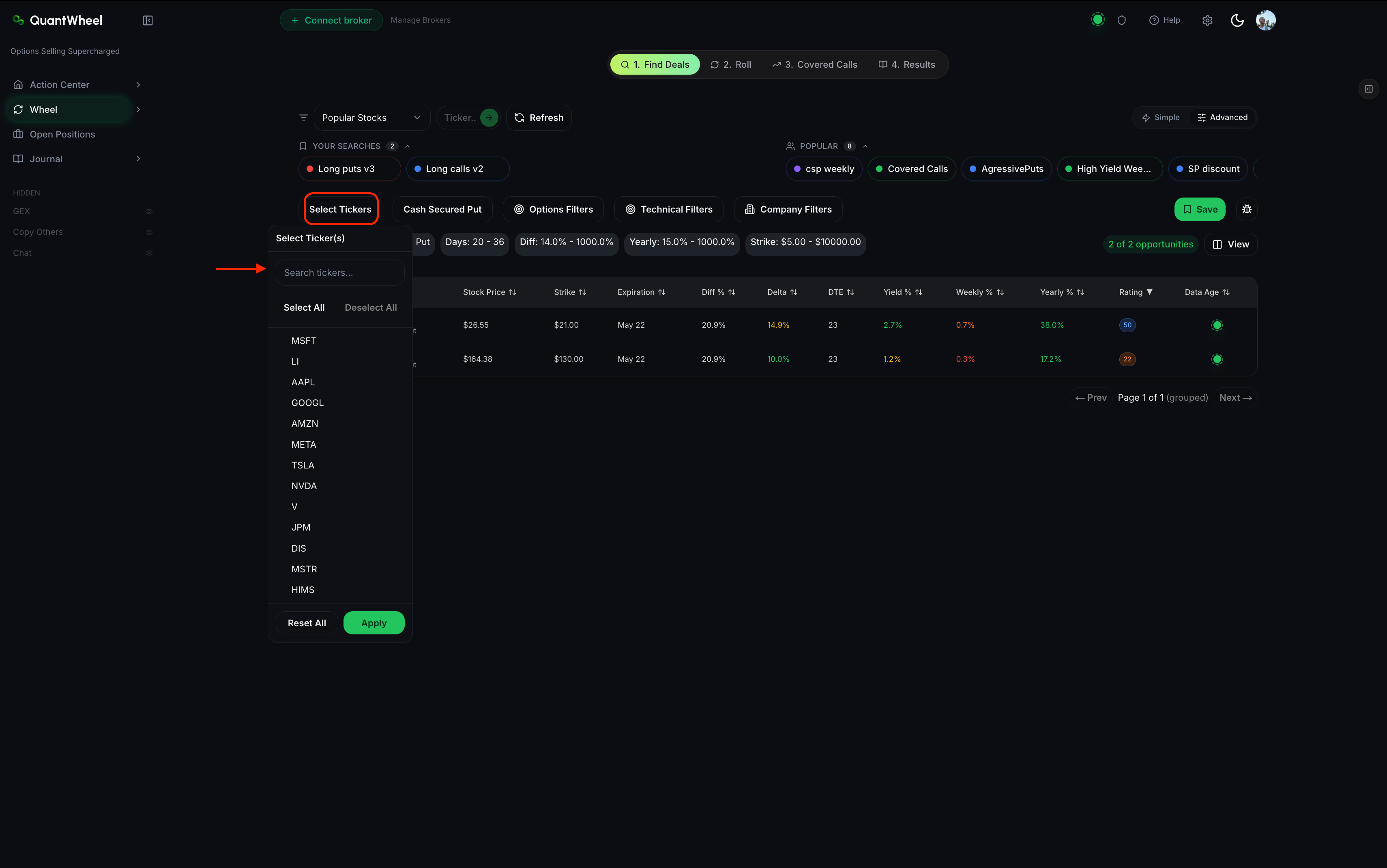
In the Market/Ticker area, decide what universe you're scanning.
For your first screen, start narrow — pick a single watchlist or a handful of tickers you already know and would be willing to own. Narrow universes produce clearer results and make it easier to see how each filter affects the output.
If you don't have a watchlist yet, enter 5 to 10 blue-chip tickers directly (large-cap stocks with active options markets). Liquid tickers make learning the tool easier because their option chains are dense and the results are less noisy.
3. Use Simple mode for your first run
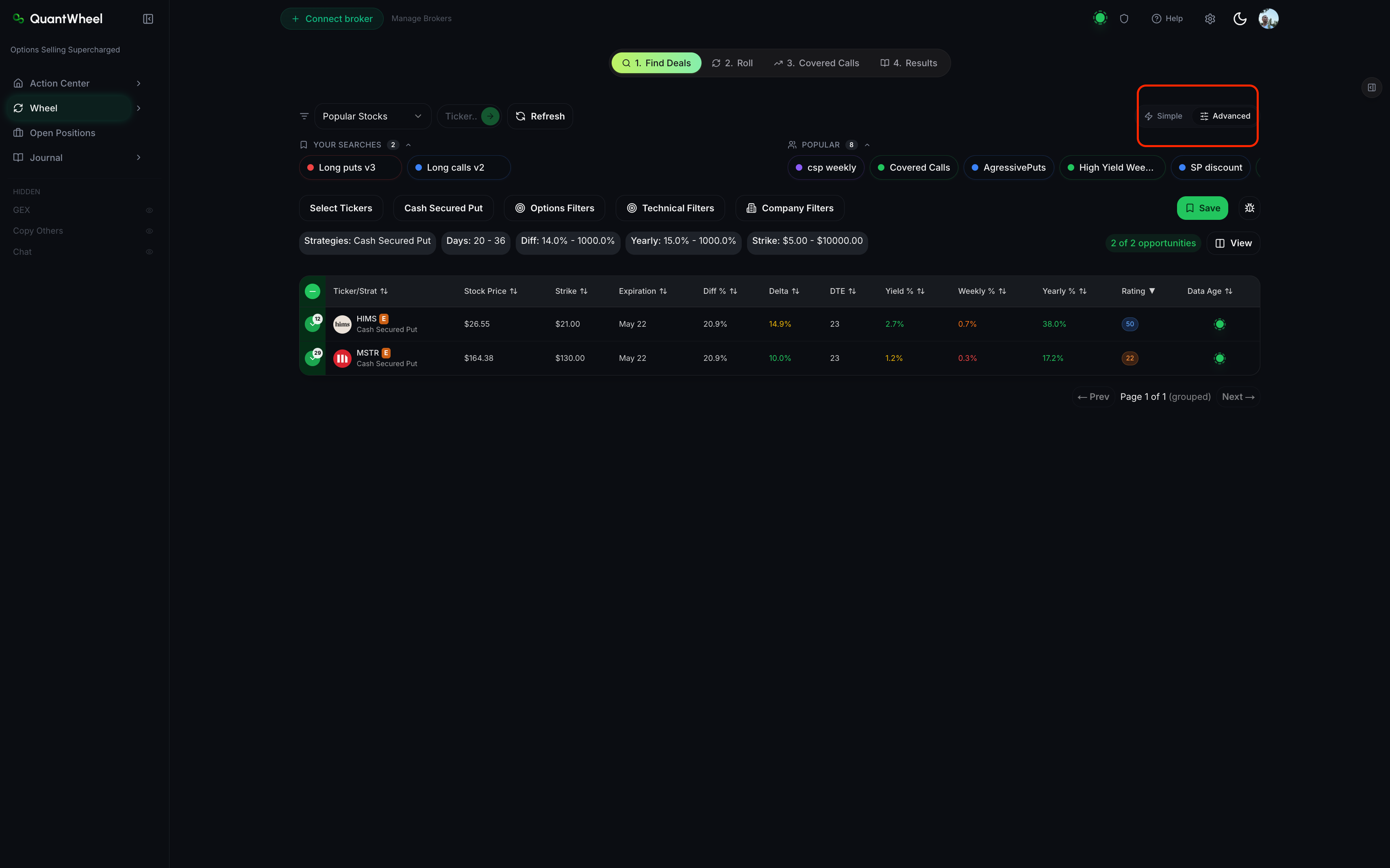
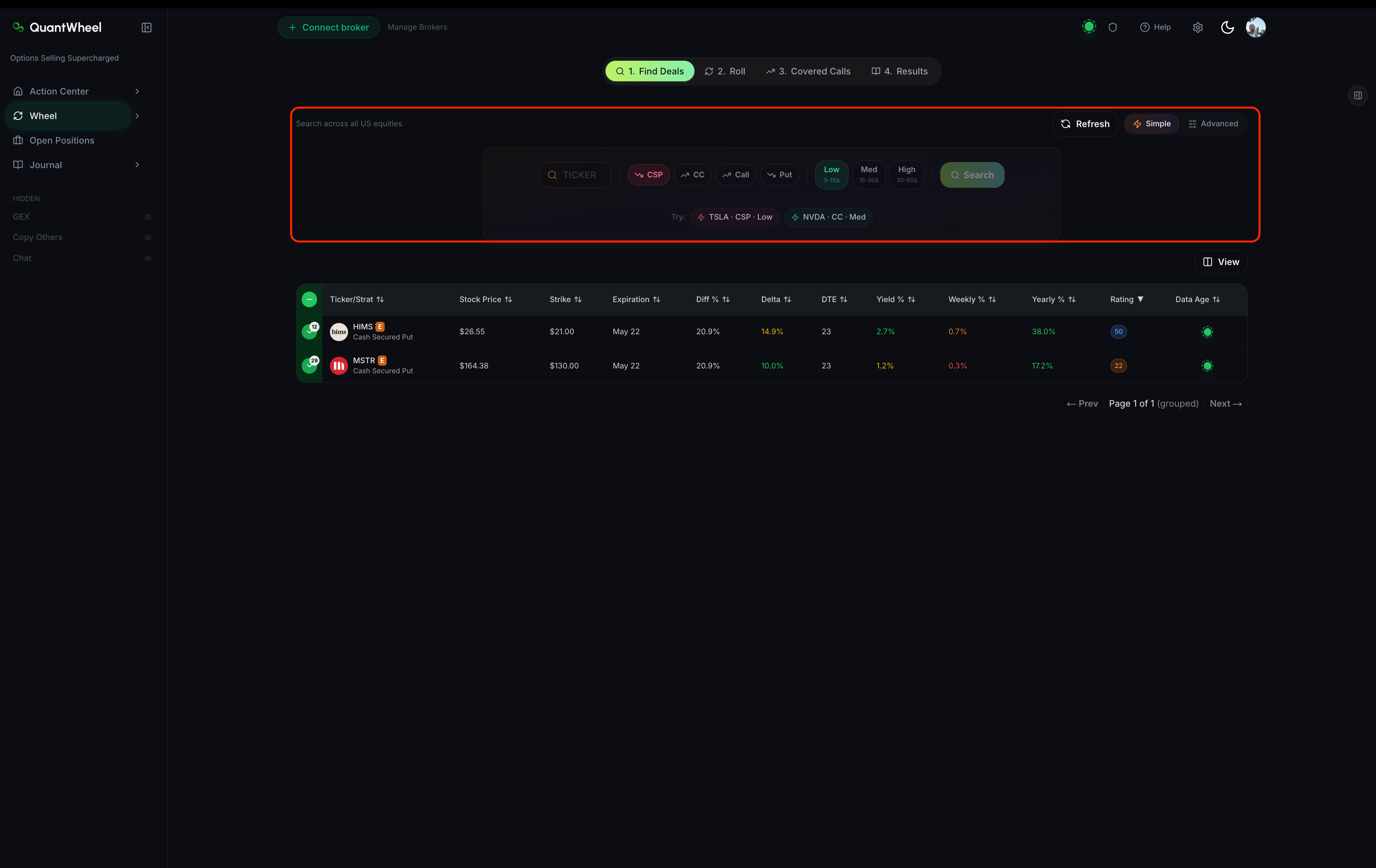
Flip the Simple/Advanced toggle to Simple. Simple mode hides the deeper technical and fundamental filters, leaving you with the core options filters — Delta, Strike, Days, Yield %, Rating.
Advanced mode is for tuning screens once you know what you want. For a first run, Simple mode removes noise and lets you see how the basic filters behave.
4. Apply three starter filters
Set these three options filters. Leave everything else untouched:
- Delta: between –0.30 and –0.15. This targets puts with a 15–30% probability of ending in the money — a common conservative zone for wheel traders. (Delta on short puts is negative; a delta of –0.20 means roughly a 20% probability of assignment.)
- DTE (days to expiration): between 30 and 45. This is the sweet spot for premium-to-risk trade-off on most wheel candidates. Shorter expirations decay faster but carry more gamma risk; longer ones tie up capital.
- Yield %: greater than your Target Yearly Yield divided by 12. (If your Preferences have a 20% annual target, this is about 1.7% minimum per contract.)
Click Apply Filters.
5. Read the results
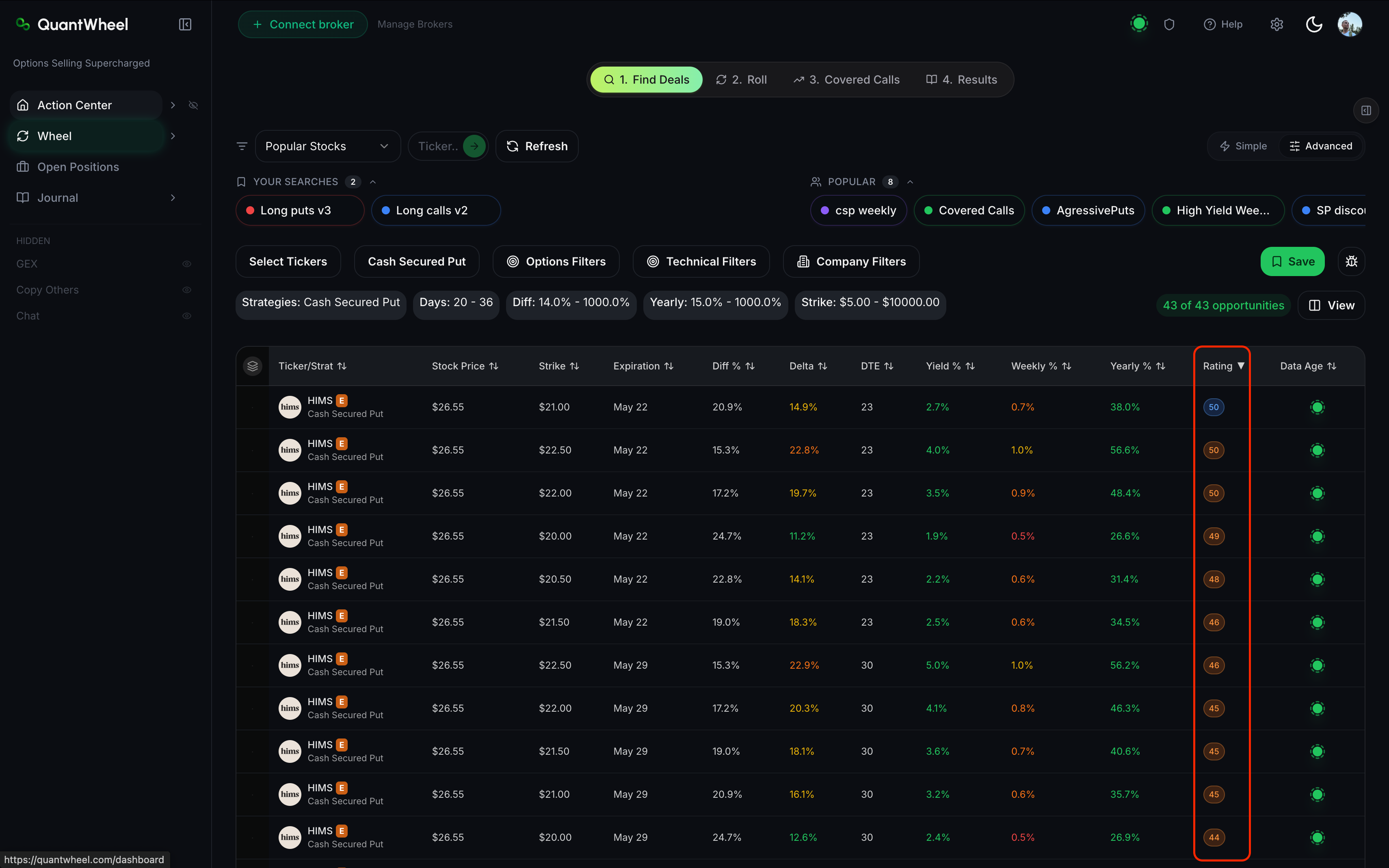
The results table now shows contracts matching your filters. Above the table, you'll see a counter like "12 of 48 opportunities" — 48 is the unfiltered universe on your watchlist; 12 is what passed your filters.
Click the Rating column header to sort from highest to lowest. The top rows are QuantWheel's best candidates given your filter set.
Scan each row's four key columns:
- Ticker — is this a stock you'd willingly own if assigned?
- Strike — is this a price you'd be comfortable paying for 100 shares?
- Yearly % — is the annualized yield worth the capital commitment?
- Rating — does it suggest this is a strong candidate relative to its peers?
If one or two rows look attractive on all four dimensions, you have candidates. If everything looks marginal, either loosen filters (try Delta –0.35 to –0.10 and DTE 20–60) or widen the ticker scope.
6. Decide, or iterate
You have three choices from here:
- Take a candidate to your broker, place the trade, and let QuantWheel's auto-journal track it as the first stage of a wheel cycle. Check the Roll tab when DTE drops below 10 to see if rolling before expiration makes sense. Come back to Results at the end of each week.
- Save the filter combination for reuse. See How to save and reuse filter combinations. Starter filter sets become your default launch point for future screens.
- Iterate the filters. Flip to Advanced mode, add technical or fundamental filters, tighten or loosen thresholds, and re-run. Every screener skill comes from this iteration — nobody nails a good filter set on the first try.
Common issues
My filters returned 0 opportunities.
The filter combination is too narrow for the tickers you selected. Start by clicking System Reset, then add one filter at a time, re-running after each. If Delta –0.20 and DTE 30–45 together return zero on a blue-chip watchlist, something else is filtering aggressively (earnings, liquidity, yield threshold).
The top-Rated row looks bad to me.
Rating is relative to your filter set, not a recommendation. If the top-Rated contract is on a ticker you don't want to own, or at a strike you're uncomfortable with, skip it. See How to read the opportunity Rating for when to override the Rating.
The Yearly % looks too good to be true.
High Yearly % values often come from contracts with very short DTE (extreme normalization) or from stocks with very elevated IV (often earnings-related or event-driven). Cross-check DTE and the Includes Earnings toggle before trusting a headline Yearly %.
Should I use Live Sync on my first screen?
No — leave Live Sync off while you're evaluating. Live updates change the table mid-evaluation, which makes it hard to compare candidates. Use Refresh manually when you want fresh data.
What do I do next after picking a candidate?
Place the trade with your broker. QuantWheel tracks the position automatically once it appears in your broker's feed. Expect to see it under Open Positions and eventually on the Roll tab if it needs rolling before expiration.
Related
- How to use the Find Deals screener
- How to read the opportunity Rating
- How to filter by options metrics
Risk disclaimer: Options trading involves substantial risk of loss and is not suitable for all investors. Past performance does not guarantee future results. This content is for educational purposes only and is not investment advice.